| WIP |
|---|
| This page is currently under development |
Building core AI applications in production requires managing and scaling multiple AI models, handle access control for different users, track usage and monitor performance. No easy feat for any AI team alone.
Kalavai Deployer is an application built on top of our GPUops platform that allows teams to manage all their AI deployments in one place, batteries included. It supports templated deployments of LLMs, diffusion pipelines, audio models and more, and exposes all its services through a single API gateway, with built-in monitoring and access control.
Features
With Kalavai Deployer you can build your own multi-tenancy AI cloud service.
- Manage multiple AI deployments in one place
- Support for LLMs, diffusion pipelines, audio models and more
- Auto deployment on Kalavai GPU infrastructure (no devops required)
- Automatically scale up and down based on demand -including scale to 0 for cost optimization.
- Access control via API keys
- Usage tracking and cost attribution
- Extensive library of pre-configured models and templates
Getting started
Access to Kalavai Deployer is currently limited to select customers. Contact us if you are interested in early access.
Once you have given access to your account, follow the steps below to get started:
1. Configure environment
Model weights are loaded from Hugging Face. To access gated and private models, you need to configure the HF_TOKEN in the Deployer. To do so, go to Home page and add the HF_TOKEN value.
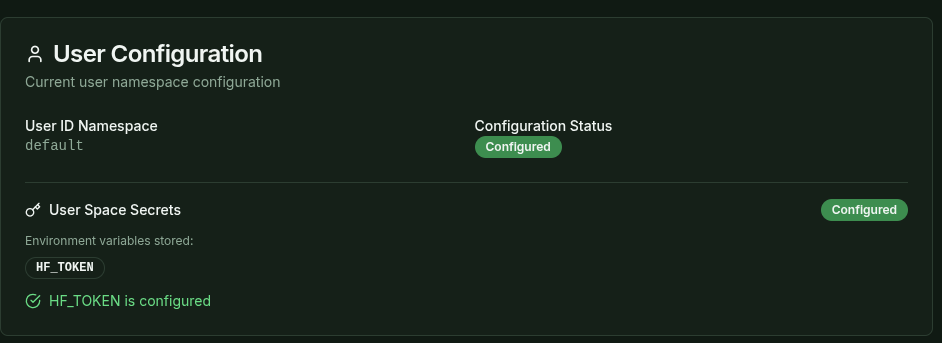
Note: we recommend using a readonly token for security reasons.
2. Deploy a model from the library
To deploy a new model, head to the Deploy Model page and select the model you want to deploy. Each model comes in multiple variants, like different quantizations or serving configurations, select the one that best fits your needs.
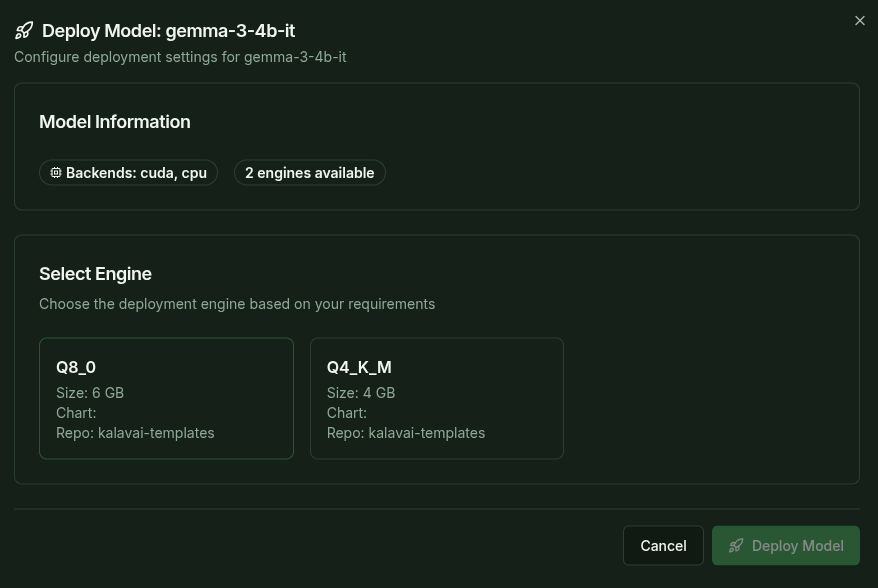
Models in the library are pre-configured and automatically select smart defaults for you, including the resources required.
Once you've successfully deployed, models may take a few minutes to become available, as the backend needs to provision the hardware resources, configure the deployment, download the weights and load them into memory. You can check the progress in the Deployments page, which shows the status of each deployment:
Model ID: The unique identifier for the model (to be used during inference)Status: The current status of the provisioning (pending, running, failed)Endpoints: A list of available endpoints to access the model directly (for testing purposes; for inference, using the LLM gateway is recommended)Health: The current health status of the model (healthy, unhealthy), which indicates if it is ready to serve requests.Actions: Logs (coming soon) and Delete (remove the deployment)
Once the model is healthy, you can use it for inference via the LLM gateway.
3. Use the LLM gateway for inference
Any model deployed through the Deployer can be accessed via the LLM API gateway, which is an authenticated endpoint that routes requests to the appropriate model. To do inference you need:
- The API Gateway endpoint, as shown in the
LLM Gatewaypage - A valid API Key (see below for how to create one)
To generate a valid API Key, go to the LLM Gateway page to create an API Key and use the API key to access the deployed model as shown below.
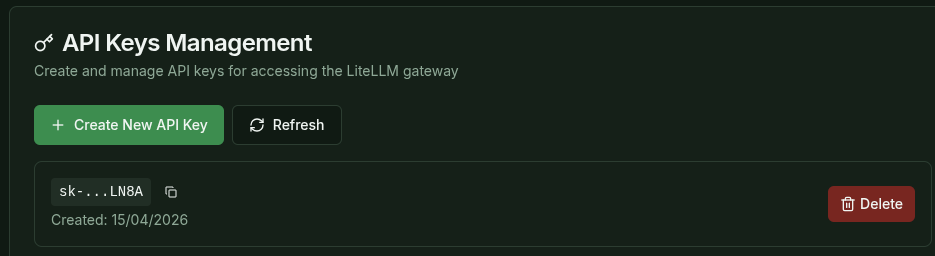
During API key creation, users can specify the following:
- Key alias: A human-readable name for the API key.
- Models to which the API key grants access. Default is all of them.
- Limits: Rate limits and other constraints for the API key.
Code examples
Substitute
import requests

url = "<GATEWAY API ENDPOINT>/v1/chat/completions"
headers = {
    "Authorization": "Bearer YOUR_API_KEY",
    "Content-Type": "application/json"
}
data = {
    "model": "your-model-id",
    "messages": [
        {"role": "user", "content": "Hello, how are you?"}
    ]
}

response = requests.post(url, headers=headers, json=data)
print(response.json())
For more advanced examples (streaming, batch processing), see the LLM Service Requests Example.
Advanced
Monitoring and access control
Via LiteLLM, you can monitor and control the access to each model, and create custom rules for each tenant. Visit the Management dashboard under LLM Gateway. Credentials listed in there.
Cost control
Setup pricing for models based on token usage via LiteLLM.
Adding custom models
(coming soon) You can add custom models to the deployment via Configuration. Contact us if you want us to add custom models.